> ## Documentation Index
> Fetch the complete documentation index at: https://docs.hirempire.com/llms.txt
> Use this file to discover all available pages before exploring further.
# Interview Intelligence
> AI-powered analysis of your recorded interviews — scores, scorecards, transcripts, and recommendations
Interview Intelligence is available on **Pro** and higher plans.
## What is Interview Intelligence?
Interview Intelligence automates everything that happens around your interviews — recording, transcription, evaluation, and reporting. Run the meeting normally; Hirempire captures the conversation in the background and produces a structured report when it's done.
It replaces manual note-taking and brings consistency to multi-interviewer panels, so your team can make faster, less biased hiring decisions.
**What it delivers:**
* 100% of interviews captured automatically
* Faster candidate reviews with scored, searchable transcripts
* Zero manual notes required
## How it works
Conduct the interview as you normally would in your video tool (Google Meet, Zoom, etc.). Hirempire's AI bot joins the call and records in the background — no extra setup needed during the meeting.
After the call ends, Hirempire transcribes the audio, maps each response to the job's requirements, and analyzes the candidate's performance. Processing typically takes a few minutes — the meeting card shows a processing indicator while it runs.
Once done, a **View Interview Intelligence** button appears on the meeting detail card. You'll have a full scorecard, transcript, and highlights ready before your next meeting — and one-click sharing for the team.
## What's in the report
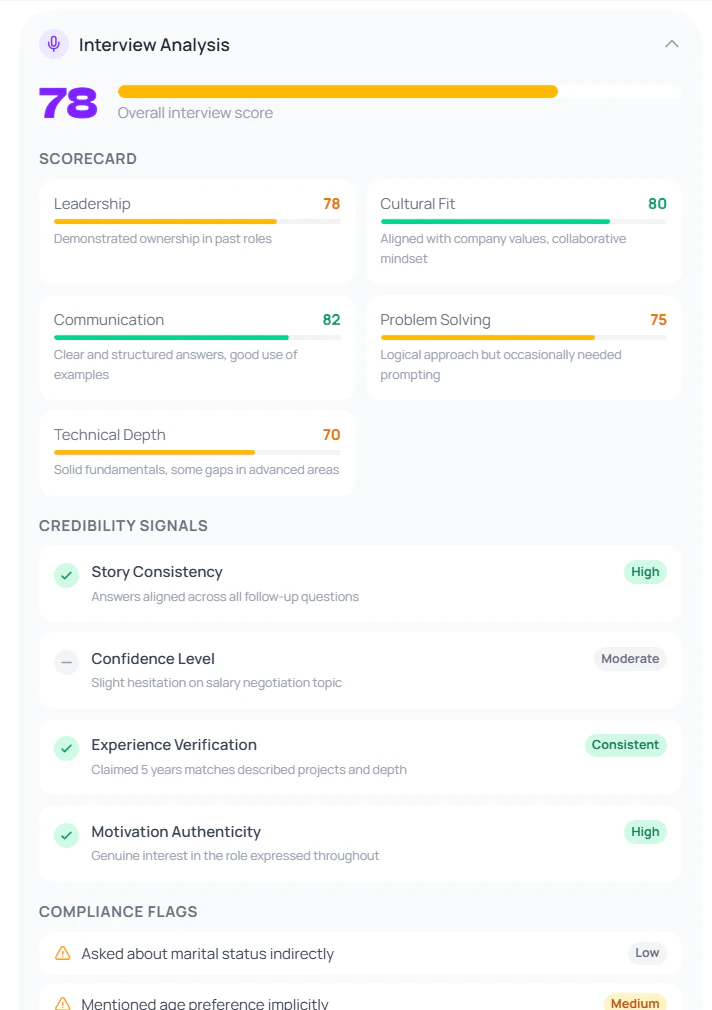 A 0–100 score representing the candidate's overall performance in the interview. Calculated from all evaluated competencies.
A multi-competency breakdown — communication, technical skills, problem solving, culture fit, and more. Each competency gets an individual score and brief notes.
A categorical recommendation: **Accept**, **Hold**, or **Reject** — along with the plain-language reasoning behind it.
A full, searchable transcript of the entire interview, with both interviewer and candidate dialogue clearly attributed. Available the moment processing completes.
Each question and the candidate's response is reviewed individually. The AI surfaces red flags — vague answers, inconsistencies, or concerning responses — so you can jump straight to the moments that matter.
Standout moments — strong answers, red flags, key examples — are detected automatically and time-stamped. Highlights are shareable as video clips so you can send a teammate the exact moment instead of the whole recording.
An executive overview of the interview, ready for one-click team distribution. Useful for hiring panels and async stakeholder updates.
Indicators the AI detected about the candidate's authenticity — confidence level, consistency of answers, and any flags worth noting.
A timeline view of how engaged the candidate was throughout the interview — energy levels, response depth, and participation patterns.
Feedback on the interview itself — question quality, time balance, follow-up depth. Helps interviewers improve over time.
Highlights any potentially problematic questions or topics raised during the interview to help maintain fair and compliant hiring practices.
A summary of the candidate's own signals about their interest level and how they perceived the role and company.
## Live transcript
During the call, Hirempire shows a live transcript with both sides of the conversation in real time. When the AI detects a standout response, an **AI highlight detected** indicator appears with quick context on why the moment was notable — useful for interviewers who want to follow up immediately.
## Candidate consent
Candidates must consent to being recorded before Interview Intelligence can be used. Hirempire includes a consent prompt at the start of the recorded session. Do not use Interview Intelligence without obtaining explicit consent from the candidate.
Hirempire handles the consent flow automatically — the AI bot announces its presence at the start of the call and records only after the candidate acknowledges.
## Sharing reports
Every report is shareable with one click. Send the full report, or share an individual time-stamped highlight clip to a teammate — they'll see the exact moment without having to scrub through the recording.
## Accessing past reports
All Interview Intelligence reports are stored on the meeting record. Open any past meeting from the [Meetings page](/meetings/overview) and click **View Interview Intelligence** to re-read the analysis at any time.
## Status indicators
| Status | Meaning |
| ------------ | ---------------------------------------- |
| `pending` | Recording received, analysis not started |
| `recording` | Recording in progress |
| `processing` | AI is analyzing the recording |
| `done` | Report is ready |
| `failed` | Analysis failed — contact support |
## Best practices
**Define competencies on the job posting.** The scorecard maps responses against the role's requirements — clearer requirements produce more useful scorecards.
**Use highlights for hiring panels.** Instead of asking teammates to watch a 45-minute recording, share two or three time-stamped highlights. Faster decisions, same context.
**Review compliance flags before rejecting.** If a flag appears, check the transcript moment before acting on the AI's recommendation.
A 0–100 score representing the candidate's overall performance in the interview. Calculated from all evaluated competencies.
A multi-competency breakdown — communication, technical skills, problem solving, culture fit, and more. Each competency gets an individual score and brief notes.
A categorical recommendation: **Accept**, **Hold**, or **Reject** — along with the plain-language reasoning behind it.
A full, searchable transcript of the entire interview, with both interviewer and candidate dialogue clearly attributed. Available the moment processing completes.
Each question and the candidate's response is reviewed individually. The AI surfaces red flags — vague answers, inconsistencies, or concerning responses — so you can jump straight to the moments that matter.
Standout moments — strong answers, red flags, key examples — are detected automatically and time-stamped. Highlights are shareable as video clips so you can send a teammate the exact moment instead of the whole recording.
An executive overview of the interview, ready for one-click team distribution. Useful for hiring panels and async stakeholder updates.
Indicators the AI detected about the candidate's authenticity — confidence level, consistency of answers, and any flags worth noting.
A timeline view of how engaged the candidate was throughout the interview — energy levels, response depth, and participation patterns.
Feedback on the interview itself — question quality, time balance, follow-up depth. Helps interviewers improve over time.
Highlights any potentially problematic questions or topics raised during the interview to help maintain fair and compliant hiring practices.
A summary of the candidate's own signals about their interest level and how they perceived the role and company.
## Live transcript
During the call, Hirempire shows a live transcript with both sides of the conversation in real time. When the AI detects a standout response, an **AI highlight detected** indicator appears with quick context on why the moment was notable — useful for interviewers who want to follow up immediately.
## Candidate consent
Candidates must consent to being recorded before Interview Intelligence can be used. Hirempire includes a consent prompt at the start of the recorded session. Do not use Interview Intelligence without obtaining explicit consent from the candidate.
Hirempire handles the consent flow automatically — the AI bot announces its presence at the start of the call and records only after the candidate acknowledges.
## Sharing reports
Every report is shareable with one click. Send the full report, or share an individual time-stamped highlight clip to a teammate — they'll see the exact moment without having to scrub through the recording.
## Accessing past reports
All Interview Intelligence reports are stored on the meeting record. Open any past meeting from the [Meetings page](/meetings/overview) and click **View Interview Intelligence** to re-read the analysis at any time.
## Status indicators
| Status | Meaning |
| ------------ | ---------------------------------------- |
| `pending` | Recording received, analysis not started |
| `recording` | Recording in progress |
| `processing` | AI is analyzing the recording |
| `done` | Report is ready |
| `failed` | Analysis failed — contact support |
## Best practices
**Define competencies on the job posting.** The scorecard maps responses against the role's requirements — clearer requirements produce more useful scorecards.
**Use highlights for hiring panels.** Instead of asking teammates to watch a 45-minute recording, share two or three time-stamped highlights. Faster decisions, same context.
**Review compliance flags before rejecting.** If a flag appears, check the transcript moment before acting on the AI's recommendation.